
Photo Timer for iPhone & Complete User Guide
Photo Timer – Capture Perfect Photos Every Time
The ultimate photo timer app for iPhone that helps you take flawless selfies, group photos, and hands-free shots. Master timed photo capture with advanced controls, flexible photo timer delay options, and professional-level results—right from your phone.
- •Best selfie camera apps and professional settings
- •Step-by-step photography techniques and posing guides
- •Self timer for photos that delivers perfect group shots and selfies
Why Choose Photo Timer for iPhone Photography?
When you download a photo timer app like Lenspal, you unlock tools designed for serious iPhone photographers. Lenspal goes beyond basic delays and gives you full creative control.
Key photo timer app features include:
- Customizable delays
- Multiple photo capture
- Shooting intervals
- Hands-free operation
These tools help you take consistent, high-quality photos whether you're shooting solo, with friends, or for professional content.
4.8★ rating with 50K+ downloads
"Photo Timer transformed my selfie game completely! The timer feature is a game-changer for group photos."
How to use the photo timer
Learning how to use a photo timer is simple, but using it well can dramatically improve your photos. Start by opening your camera or Photo Timer app, choosing a delay, and placing your phone on a stable surface or tripod.
A proper photo timer setup includes checking your framing and adjusting key photography timer settings before starting the countdown. Lock focus and exposure, choose the right delay, and make sure your background is clean and well-lit.
For better results, think about photo composition with timer use. Center your subject, leave enough space around the edges, and apply classic composition rules like the rule of thirds. These small adjustments make timed photos look intentional rather than rushed.
How to use the photo timer on an iPhone
Using a photo timer for iPhone is easy and powerful. Open the Camera app or an iOS photo timer app, tap the timer icon, and select a delay. Once the countdown starts, the phone camera timer takes the photo automatically—no touching the screen needed.
- 1.Open the camera or timer app
- 2.Find the camera settings
- 3.Select the delay (3–10 seconds or customize)
- 4.Compose the shot, and start the countdown before getting into position
A mobile photo timer is perfect for selfies, portraits, and hands-free shots. It reduces camera shake, helps you stay relaxed, and gives you full control over your pose and framing. For more advanced features like multiple shots and custom intervals, a dedicated iOS timer app offers greater flexibility than the default camera.
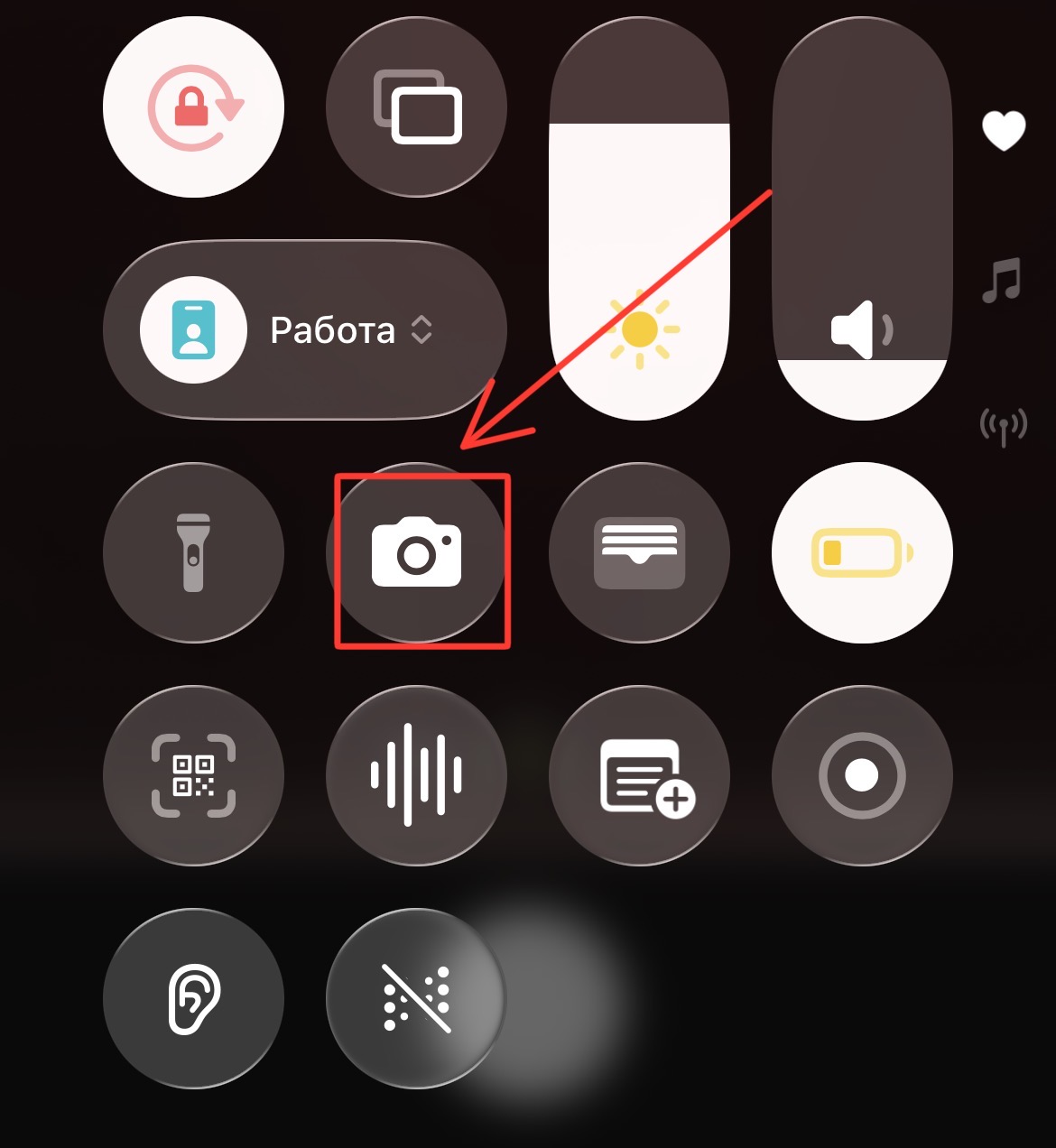
Open camera
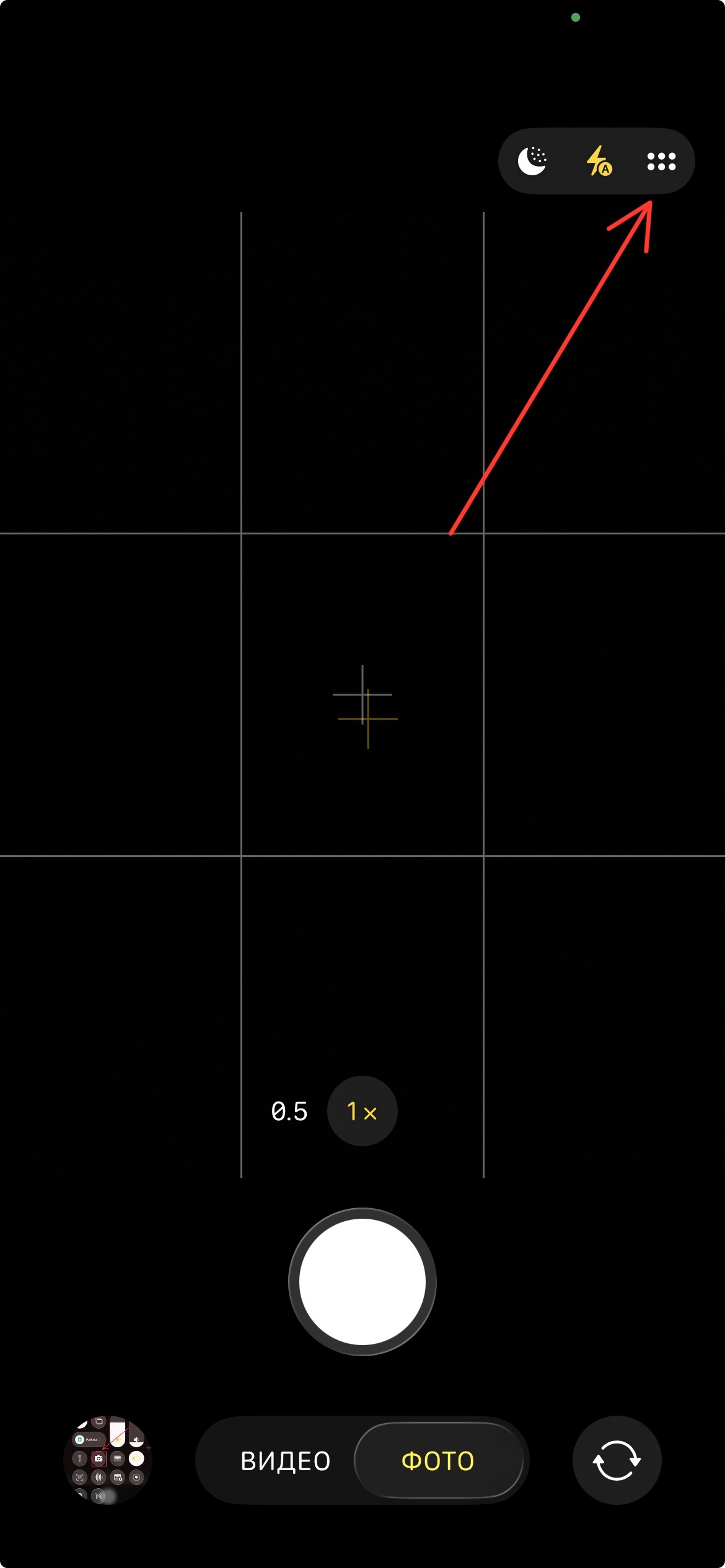
Camera settings
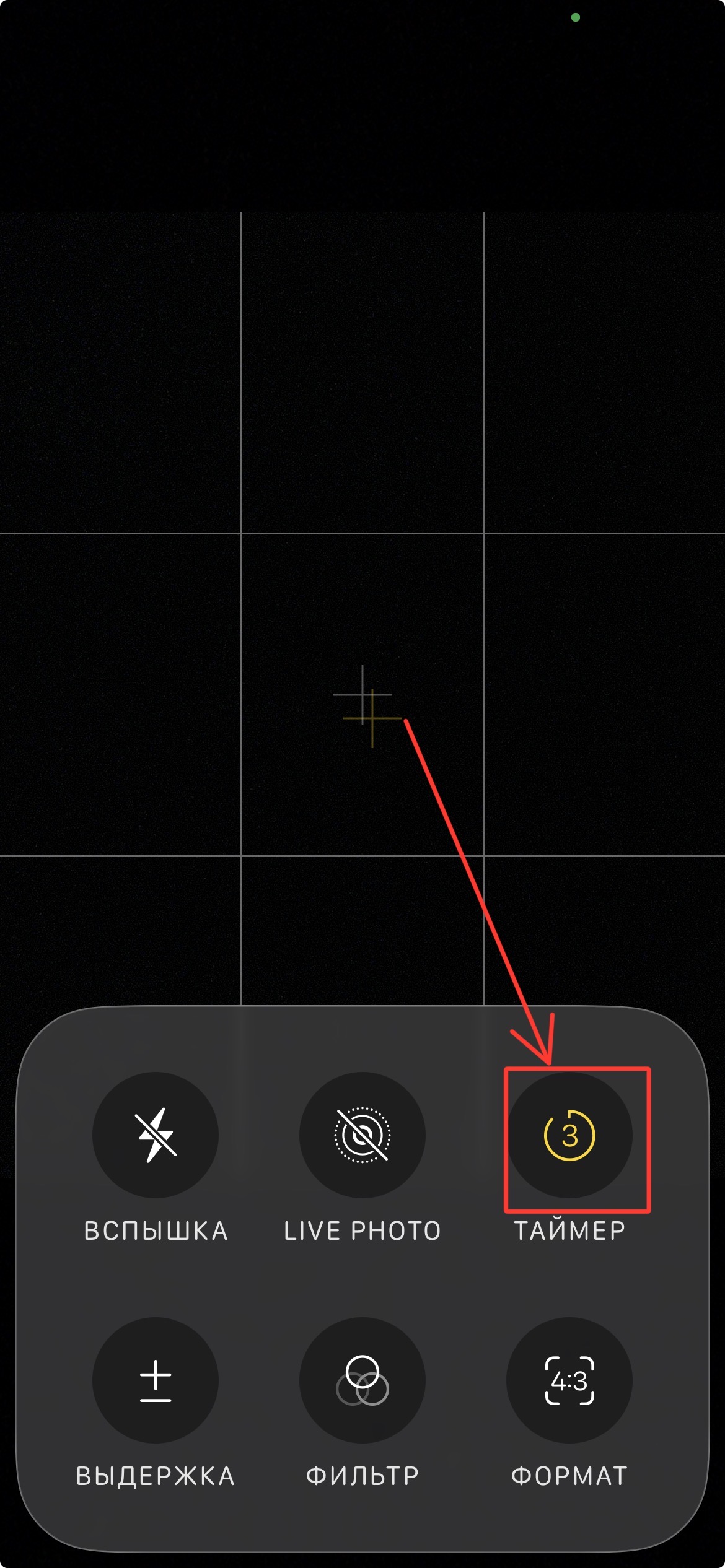
Select timer
How to use the photo timer effectively
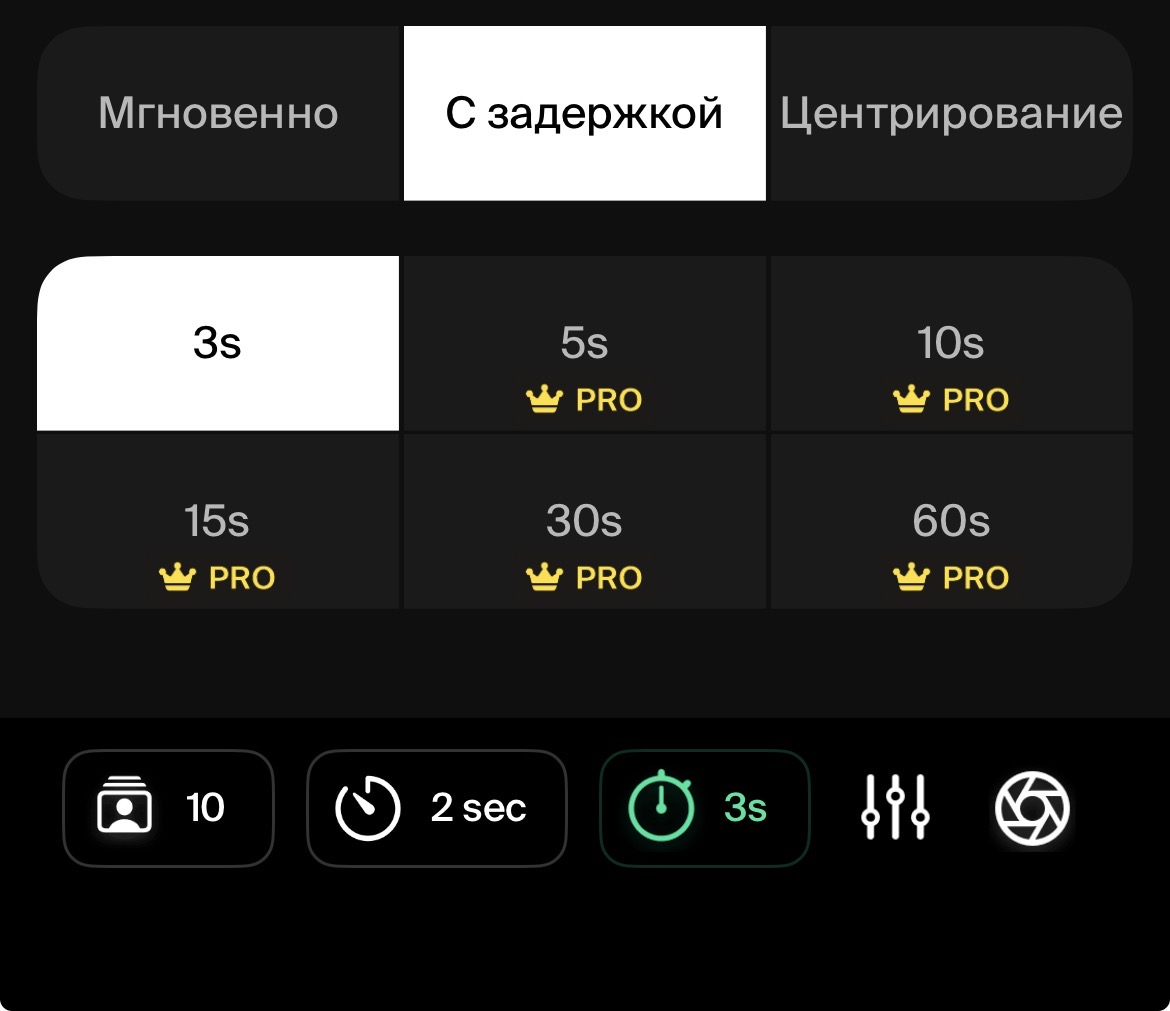
To use the photo timer more effectively, download the Lenspal app, which will turn your iPhone into a personal assistant. How to use the timer in Lenspal:
- •Set important iPhone camera settings such as focus, exposure, and HDR before starting the countdown
- •Choose the desired number of photos for burst-like sequences
- •Set a shooting interval between shots for consistent spacing
- •Pick a custom delay (3s, 5s, 10s, 15s, etc.) to suit your setup
Use a short delay (3s, 5s, 10s) for quick selfies when you are already in the right pose. Choose a longer timer (15s, 30s) for group photos so that everyone can prepare naturally.
To improve your results, combine the timer with simple timer photography techniques. Pay attention to the background, keep the subject in the center of the frame, and leave enough space around the edges. Basic photo composition tips, such as the rule of thirds, clean lines, and proper headroom, will help every timed shot look more polished and thoughtful.
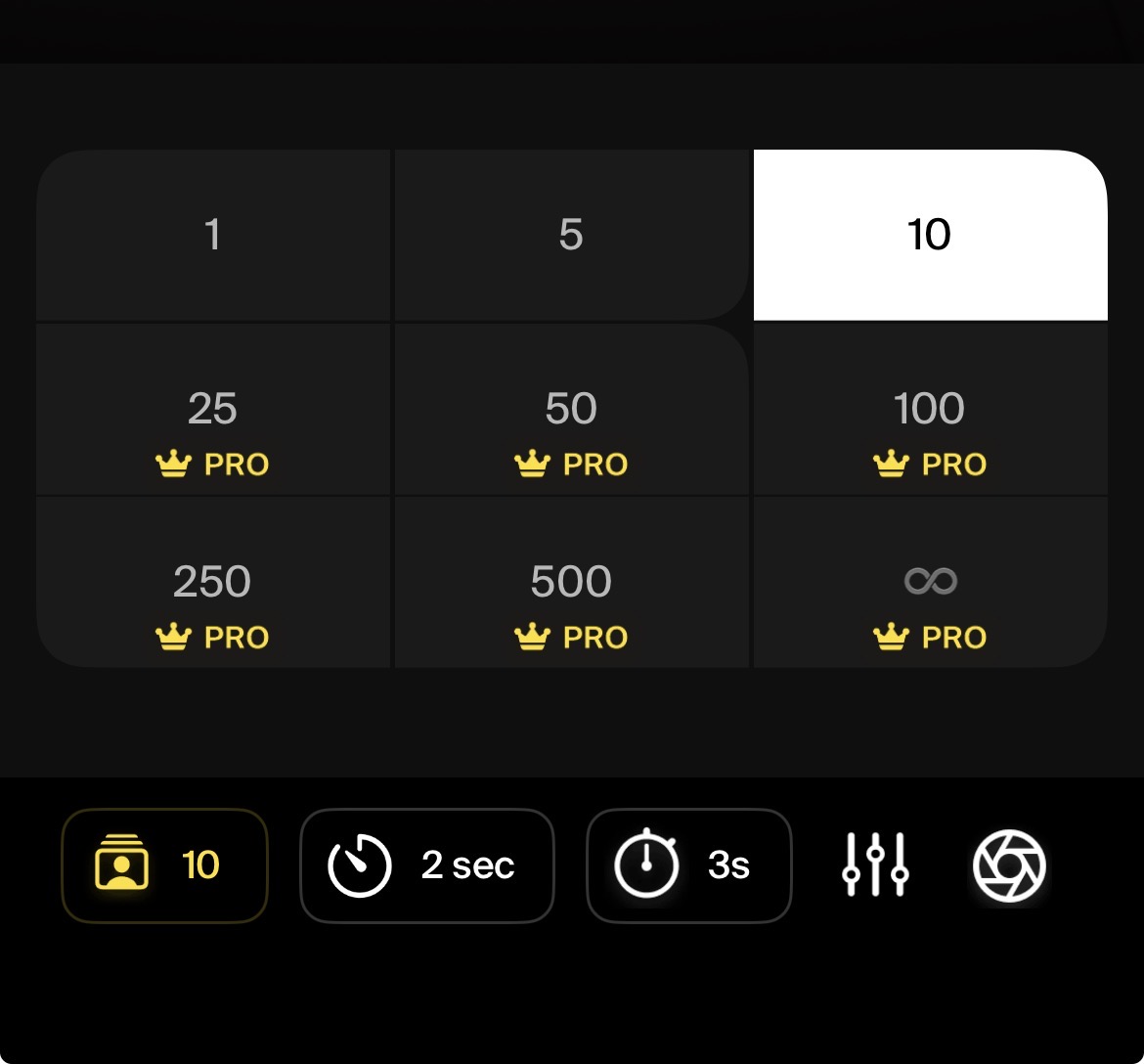
Photo count
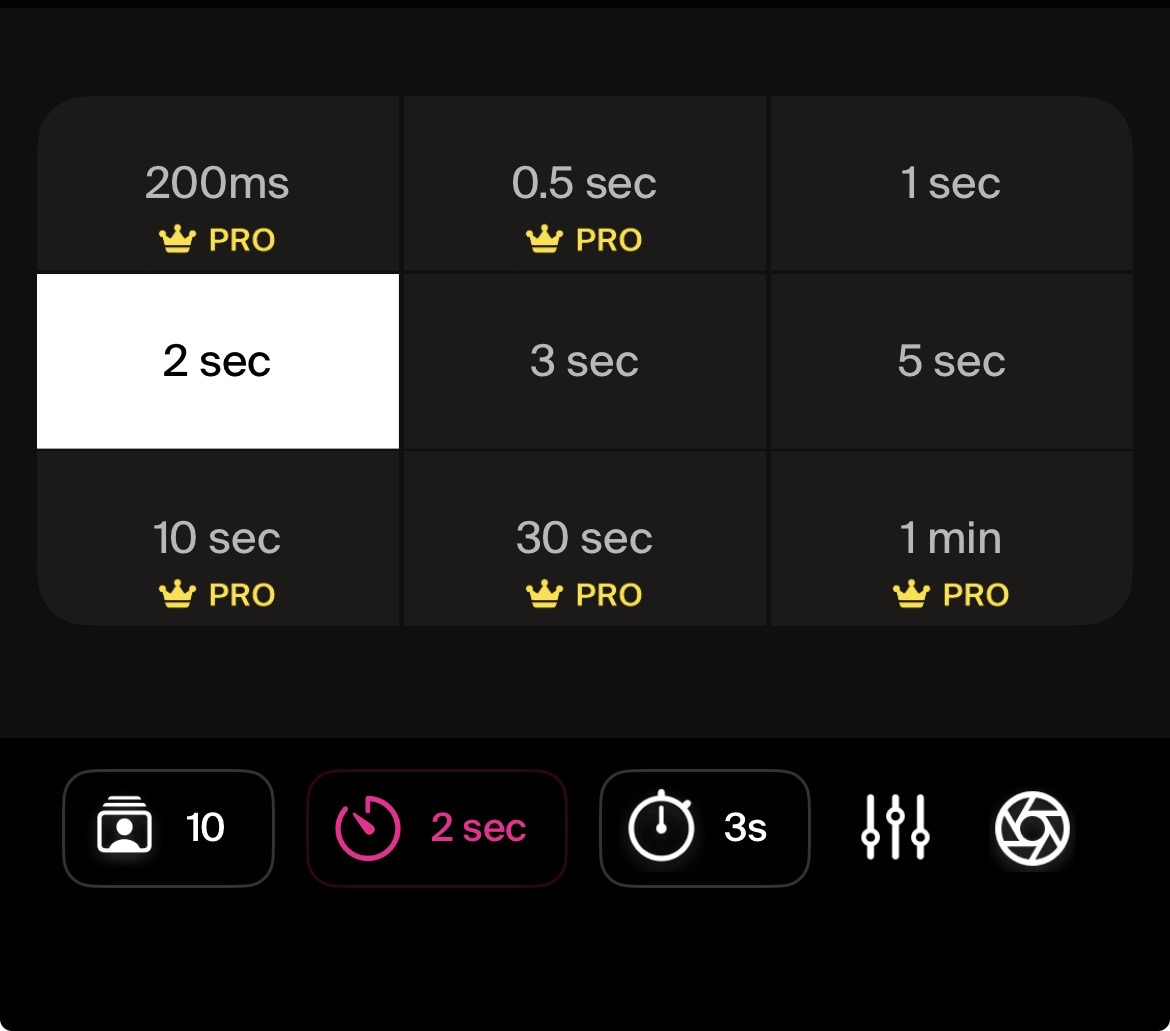
Interval
Delay
How to use delay, countdown, hands-free mode
Different timer options work best in different situations:
- •Group photo timer: Use a longer delay so everyone can get into position naturally
- •Selfie photo timer: Short delays help capture relaxed expressions
- •Hands-free photography: Avoid blur by triggering the shutter without touching your phone
- •Solo photo shooting: Ideal for creators working alone
- •Tripod photography timer: Perfect for stable, professional-looking shots
Using delay and countdown modes removes the pressure of rushing back to the camera. You can focus on lighting, posture, and confidence—resulting in cleaner, sharper photos every time.
Essential iPhone Photography Tips
Use natural light whenever possible for better photo quality
Clean your iPhone camera lens before important shots
Try different angles - don't always shoot at eye level
Use the rule of thirds for better composition
Set a timer for group photos and selfies to avoid blur
Experiment with portrait mode for professional-looking shots
Pro Tip: Download Photo Timer to access advanced timer features and guided photography tutorials right on your iPhone.
FAQ
Start Your iPhone Photography Journey
Join thousands of iPhone photographers using Photo Timer for perfect selfies and group photos. Download now and transform your mobile photography with professional timer features and guides.